.png?width=660&height=92&name=help-centre-banner-J-2x%20(2).png)
For Standalone Tools, go to Tools → My Ongoing Marking. Once transcription finishes, the system will ask you to ‘View’ the responses before marking begins. For Assignment Packs, navigate Tools → Assignment Packs. Once transcription completes, there will be an option to ‘Review’.
You can click through each transcribed response in turn. When you're happy, click Save and Continue Marking and the marking run starts.
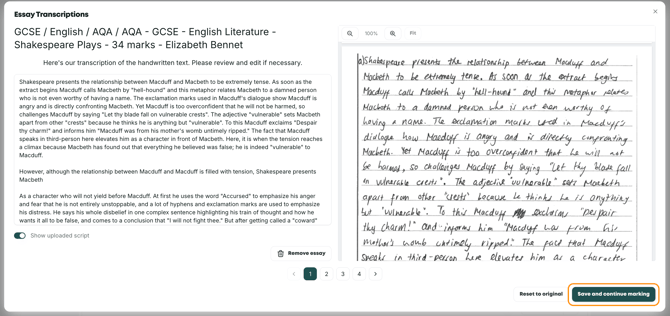
The transcription software is reliable, but handwriting is handwriting. A word here or there can be misread, and occasionally something more significant gets caught.
The review step means no inaccurate transcription goes through to marking without a teacher having had the chance to look at it first. You are always the professional in the loop, and this is a step that requires your expertise.
What the system flags for youYou don't need to read all 200 scripts word for word. If a transcription falls below the system's quality threshold, it's flagged with a message so you know to take a closer look, and specific points within the transcript are highlighted where intervention may be needed.

Top tip: work through the flagged ones properly, then skim the rest. That's where the value is, and it keeps the review step to a few minutes rather than an afternoon.
Making editsYou can edit directly in the transcript: change individual words, delete a paragraph, tidy anything that's come through garbled.
A few practical notes:
- Check the save has confirmed before you navigate away. It's the most common cause of "my edits disappeared".
- If edits genuinely aren't holding, or the cursor jumps somewhere unexpected, try a different browser. A few display quirks have been reported in particular browsers. If it persists, tell us on live chat, as that shouldn't be happening and we'd like to know.
Students cross things out, and by default the system transcribes it and flags it in the transcript.
Near the bottom left of the review screen you'll find a Show crossed out text toggle and a Remove crossed out text button. They do two different jobs:
Show crossed out text controls whether you can see it with a strike through it. Toggle it off and the crossed-out text remains, but without the flag; toggle it back on and it will have a strike through it. Nothing is changed in the transcript itself.
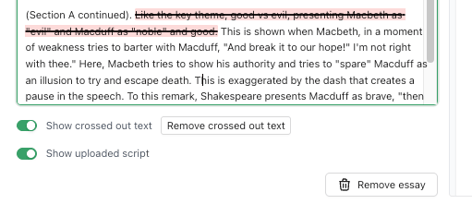
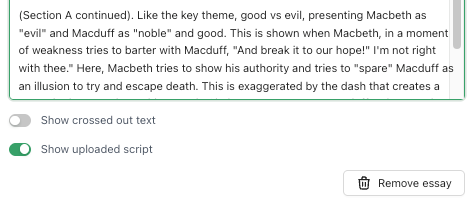
Remove crossed out text takes the crossed out text out of the transcript altogether, so it isn't passed through to marking.
Note: Both apply to the whole transcript rather than to selected passages. If you'd rather crossed-out work was still flagged (and some departments would) leave the toggle on and don't click the button. Those are the default settings.
Blank and missing pagesIf a student skipped a question and you left a blank sheet in its place, you'll see a blank transcription come through. You can delete it at this stage.
Something more significant to watch for: a transcript that starts partway through a response, or that's clearly missing a page. Re-uploading that one script usually resolves a one-off glitch. If it's happening across several students, or always at the same point (always missing the first page, for instance) stop re-trying and tell us, because that's a pattern rather than bad luck.
Essay titles flagged as invalid or unclearSometimes the system isn't certain which question a response relates to. This comes up most often with creative writing questions where students choose between two prompts, or with papers offering a choice of question.
Where that happens, you'll be asked to confirm or correct the title for those particular responses. It only takes a moment and it makes sure each response is marked against the right thing.
Before you click Save and Continue MarkingWorth a final glance at:
- the flagged transcriptions have been looked at
- no response has obviously lost a page
- blank transcriptions from skipped questions have been deleted
- any queried essay titles have been confirmed
- the strikethrough setting is how you want it for this batch
Once marking starts it runs to completion, and it can't be paused or cancelled part-way, so it's worth thirty seconds on this list.
What happens nextMarking runs in the cloud, so you can close the page, close your browser, or shut your laptop entirely. Many schools set a large batch going at the end of the day and find it waiting for them the next morning.
Feedback is released student by student as it's produced, straight into My Feedback; it doesn't wait for the whole batch to finish. If one response fails to mark for any reason, it won't hold up anyone else's.
You can still edit the feedback itself afterwards, separately from the transcript. That's covered in Generating, Editing and Downloading Student Feedback.
Still unsure? The support chat in the bottom-right corner of the website connects you directly to a real person on the Top Marks team – not an AI bot, ironically! Don't hesitate to reach out at any point.