.png?width=660&height=92&name=help-centre-banner-J-2x%20(2).png)
If you're the person who set your school up, you're already an admin and can do everything below.
New Users
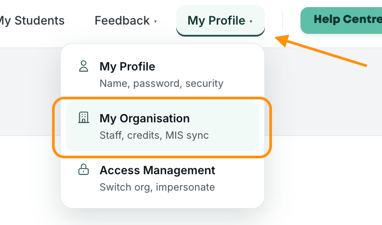
Where to find your user list
Everything to do with users lives under My Profile → My Organisation. You'll see a list of everyone at your school, along with their role and whether their account is verified.
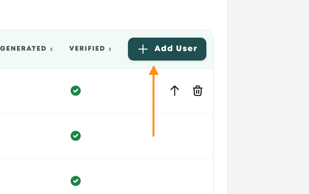 Adding a colleague (admins only)
Go to My Profile → My Organisation → +Add User and enter their details. They'll be sent an invite by email, and their account becomes fully verified the first time they log in.
That's the whole process. There's no separate approval step at our end.
If invites aren't arriving
This is nearly always a school email filter rather than a problem with the invite itself.
First, ask your colleague to check their spam and junk folders. If it isn't there, ask your IT team whether emails from us are being caught by a firewall or filter, and to whitelist us if so. Once that's done, tell us on live chat and we're happy to send a test email to confirm it's getting through, and to resend anything that went missing.
If several colleagues report the same thing at once, do let us know as it's worth checking from our side too rather than assuming it's all down to your filters.
If a registration or activation link has expired
Invites are time-limited, so this happens fairly often and is a quick fix. Ask your admin user to resend your activation email for you.
Note: admin users, you can do this via My Profile > My Organisation. When a user is unverified, a mailbox icon will appear to the right of their name.
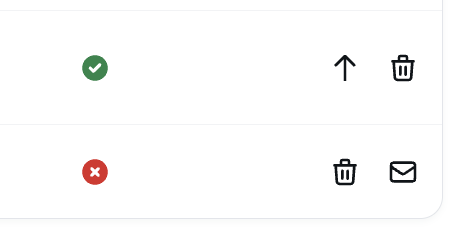
Verified and unverified accounts
A newly added colleague shows as unverified until they log in for the first time. Verification then happens automatically.
This matters because an unverified account often won't appear when you search for someone to share work with. So if a colleague isn't showing up in a sharing drop-down, the usual explanation is simply that they haven't logged in yet.
If they insist they have logged in and the account still shows as unverified, get in touch; we can verify it manually from our end. Ask them to log out and back in afterwards so the change takes effect on their side.
Roles: users and admins
Promoting someone to admin
In My Profile → My Organisation, click the small arrow next to that person's name and choose Promote to Admin. Only an existing admin can do this.
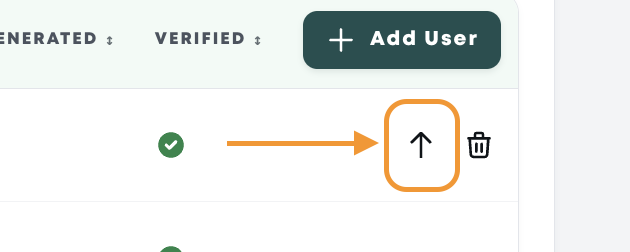
If the option isn't showing (which occasionally happens for very recently added accounts) send us their email address on live chat and we'll action it for you.
Removing someone
When a member of staff leaves or changes role, an admin can remove them from the same My Organisation screen. If you'd rather we handled it, just send us the details.
Top tip: it's worth adding this to your end-of-year checklist alongside your other systems. It keeps your user list accurate and means shared folders stay with people who are still at the school.
Working alongside colleaguesEveryone in your organisation can build and manage their own work independently; there's no shared queue to get in each other's way. There are then three separate ways to bring colleagues in, and they do different things.
Sharing and Splitting
Sharing a feedback folder
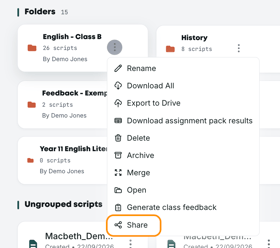
Choose Share from a folder's three-dot menu and select the colleagues who should see it. The folder appears in their account without anything needing to be downloaded or emailed. This is how most departments handle moderation samples, second marking and handovers.
To stop sharing, open the folder and choose Revoke Access from the … menu.
Sharing an assignment pack
At the point of building a pack, step eight lets you share it with named colleagues. They'll be able to see the pack and upload student work to it. This is the right option when one person builds the papers and several others collect and scan the responses.
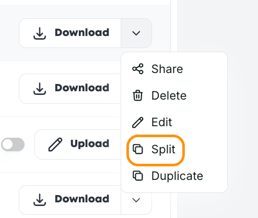
Splitting an assignment pack
Split goes a step further. Instead of everyone having access to the whole pack, you divide it up by teacher and class, so each person is responsible for uploading their own group's work.
Find it on the three-dot menu next to the pack in the Assignment Packs area. Add a teacher and their corresponding class, then click Add Group for each additional pairing.
Top top: For a large cohort this is much the better option as it means nobody is left uploading 250 papers alone.
FAQs
Can each teacher create their own assignment packs? Yes. Everyone can build and manage their own packs, tools and folders independently.
Can I see what the rest of my department has marked? Feedback belongs to the person who created it unless it's been shared. List view in My Feedback includes a column showing who created each piece, which is useful within a shared folder. Admin users can see all feedback belonging to the school, generated by every individual user.
Someone has left and their feedback is still in the system. What happens to it? Get in touch before you remove the account and we'll make sure anything worth keeping is transferred or shared across first.
How do I find out how much our school has used? Ask us on live chat. We can pull a usage report for your account, broken down by subject or by user if that's helpful.
Still unsure? The support chat in the bottom-right corner of the website connects you directly to a real person on the Top Marks team – not an AI bot, ironically! Don't hesitate to reach out at any point.