.png?width=660&height=92&name=help-centre-banner-J-2x%20(2).png)
Note: This article is only applicable for admin users.
Adding Users
Go to My Profile → My Organisation. From here you can see all current users, when they last logged in, and when they last completed a marking session.
To add a new user, click Add User and enter their email address. They will receive an invitation to create their account. Make sure to check junk/spam folders if it doesn’t land in their main inbox!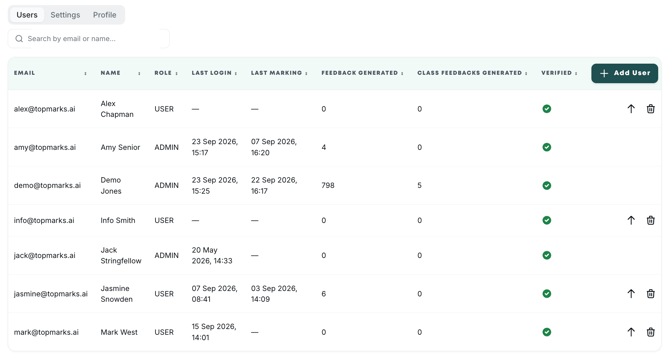
Promoting Users to Admin
From the same panel, you can promote any user to admin by clicking the upward-facing arrow next to their details. Admin users can invite additional colleagues, which is useful if you want department heads to manage their own teams independently.
Note: you will need to wait for a user to have logged in and verified before you can promote them to admin status.
Switching Between Schools (MAT Users)
If you are part of a multi-school trust, Top Marks allows you to access multiple school sites from a single login.
If you have access to multiple schools, use the Access Management feature to switch between them. You'll see a list of all schools you have access to - simply select the one you want to work in.
To locate this, navigate My Profile → Access Management.
Note: If you believe there is a school you should have access to, but cannot see it from your Access Management area, please reach out to the team via live chat.
Setting Up Single Sign-On (SSO)
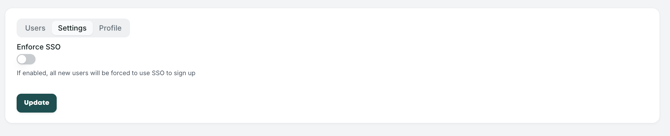
If your school uses Google or Microsoft accounts, you can enforce single sign-on so that all users log in via Google rather than a separate password.
Go to My Profile → My Organisation → Settings → Enforce SSO.
Still unsure? The support chat in the bottom-right corner of the website connects you directly to a real person on the Top Marks team – not an AI bot, ironically! Don't hesitate to reach out at any point.