.png?width=660&height=92&name=help-centre-banner-J-2x%20(2).png)
There are four steps:
- Choose your route: how you're marking the work decides what students write on.
- Prepare your scripts: get every page together, in order and staple-free.
- Scan: use the right scanner settings to make one PDF per class.
- Upload: add the PDF to Top Marks AI and let it do the rest.
Step 1: Choose your route
There are three ways to mark handwritten work in Top Marks AI. Each one needs students to write on something slightly different, so decide this before the assessment is sat.
|
Route |
What it is |
Students write on |
QR codes needed? |
Best for |
|
Standard assignment pack |
A multi-question assessment you build in Top Marks AI |
Answer booklets printed from the pack |
Yes, on every question page (already printed on) |
Classwork, homework and your own assessments |
|
Exam decoder |
An assignment pack built from an existing exam paper |
Your own exam paper, such as AQA or Edexcel |
No |
Mocks and past papers |
|
Standalone tool |
A ready-made marking tool for one type of task |
Any paper, with a student cover sheet on top |
Yes, one cover sheet per student |
Marking a single question or essay quickly |
Important: the three routes don't mix. You must upload scripts through the same route you prepared them for, or the system won't recognise them.
Step 2: Prepare your scripts
For every route
- Remove all staples. Tip: staple once in the top corner, then guillotine the corners off a whole stack at once.
- Keep each student's pages together, in order, with their first page at the front.
- Flatten any creased or folded pages.
If you're using a standard assignment pack
- Use booklets printed from the exact pack you'll upload to.
- Collect every page, including blank ones. A missing page can get the whole script rejected.
- Feel free to use additional pieces of your own paper, but make sure they are slotted into the correct order before scanning in work.
If you're using the exam decoder
- Every student has written their name clearly on the front.
- Students have marked where each new question starts (Q1, Q2 and so on).
If you're using a standalone tool
- Print a QR code cover sheet for each student from the My Students section.
- Put the right student's cover sheet on top of their work. Every script needs one, even for a single essay.
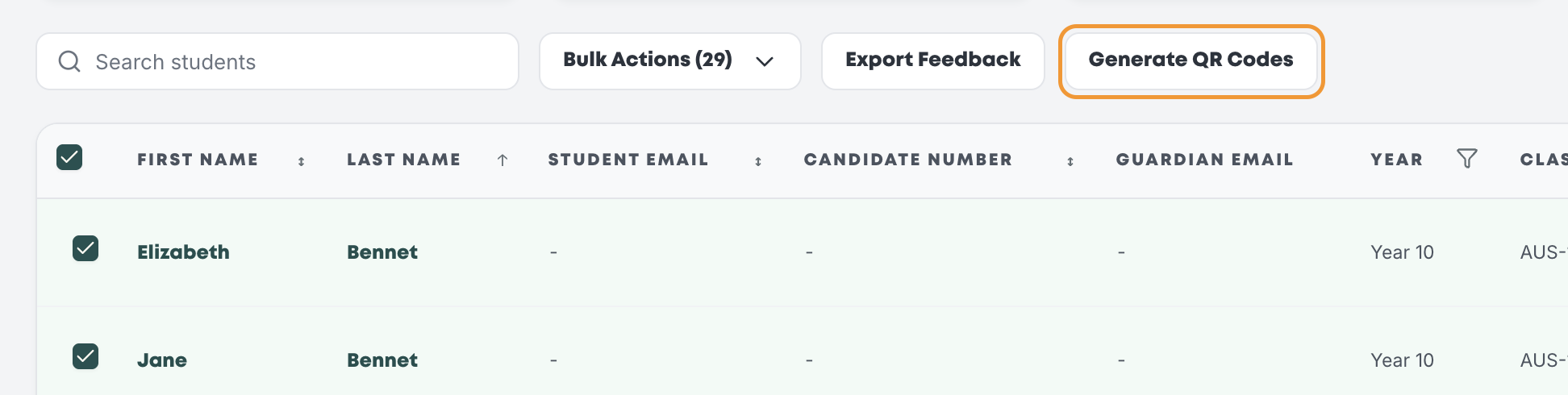
Note: photos of exercise books won't work with any route.
Step 3: Scan
You can scan a whole class into one PDF. Top Marks AI splits it into individual students for you.
Scanner settings
|
Setting |
Choose |
|
Resolution |
200 DPI or higher |
|
Sides |
Double-sided (if students have written on both sides of the page) Single-sided (if students have written on only one side of each page) |
|
Colour |
Black and white or greyscale |
|
Paper size |
A4 |
|
Save as |
|
How to scan
- Load the stack into the document feeder, all pages facing the same way and the right way up.
- Scan to PDF. If the feeder jams, re-scan that section rather than leaving pages out.
- Open the PDF and flick through it. Check every page is there, upright and sharp, and that QR codes and names aren't blurred or cut off.
- Re-scan any faint, crooked or creased pages.
Keep files a sensible size: one class per PDF works best. A whole year group in one file can be harder to review, so split big cohorts into several PDFs, breaking just before a student's first page.
Step 4: Upload
Standard assignment pack or exam decoder

- Open the assignment pack you prepared the scripts for.
- Exam decoder only: toggle the Map answers option on once you've hit download on the pack
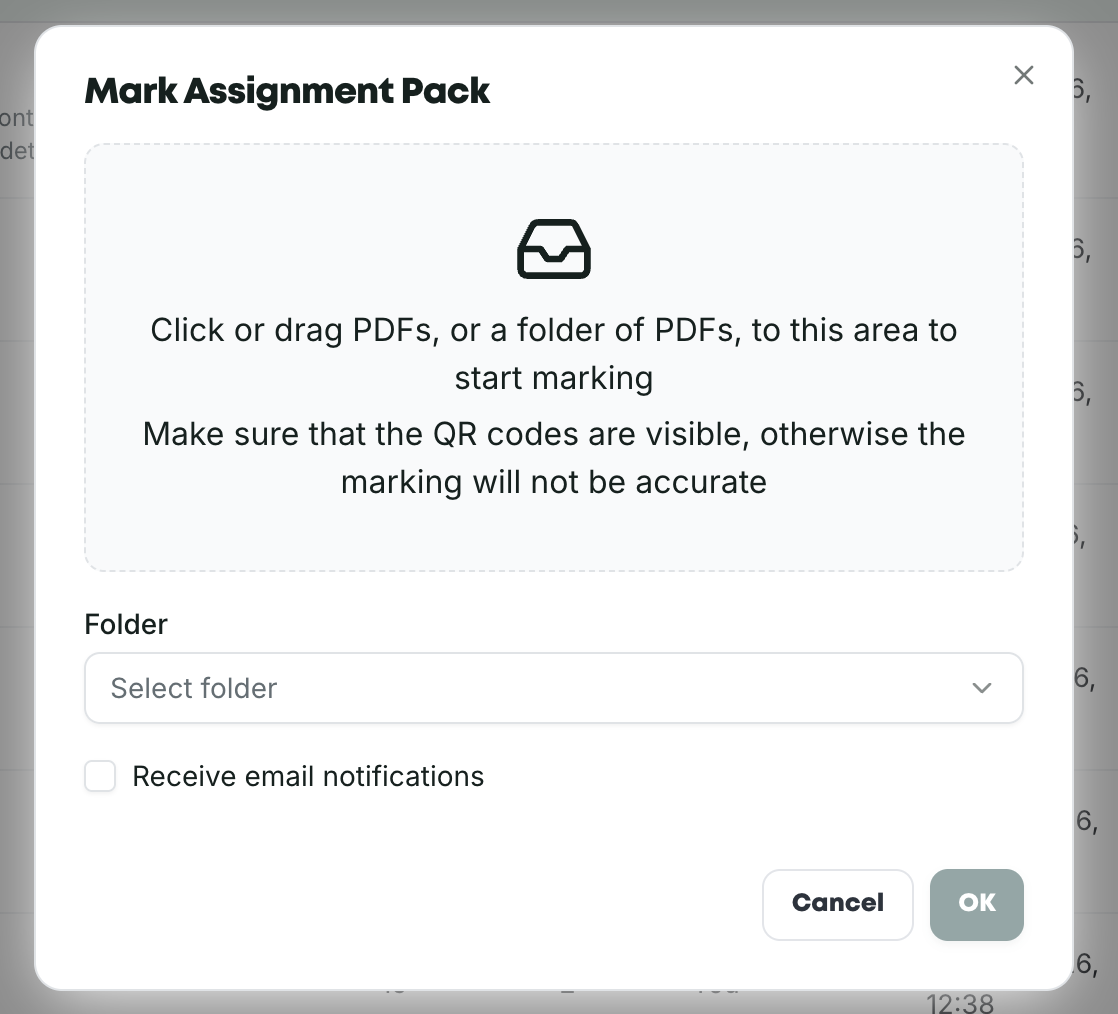
- Click 'upload' to add your PDFs
- Tick Receive email notifications to get an email when transcription and marking are done.
- Click OK. You can close the page, as everything carries on in the cloud.
Standalone tool
- Open the marking tool you're using.
- Choose the handwritten option and upload your PDF.
- Tick Receive email notifications if you'd like updates.
- Submit.
After you upload
Track progress in My Ongoing Marking. When the transcriptions are ready, check them and correct any misread words before marking goes ahead. Our Upload and Marking Statuses article explains each status.

Something gone wrong?
|
If you see this |
Do this |
|
Every other page is missing |
Your scanner was set to single-sided. Re-scan double-sided. |
|
"No QR code found" or "No barcodes detected" |
Check every script has its QR codes or cover sheet, re-scan any blurry pages, or split a very large file into smaller PDFs. |
|
"Unknown barcodes" |
The scripts were prepared for a different route or pack. Upload them through the one they were printed for. |
|
"The following students were not found in your account" |
A code was misread, usually from an upside-down or crooked page. Re-scan that page and upload again. |
|
Scripts showing as "Rejected" |
A page is missing from a standard pack script. Scan every sheet, including blanks, and contact us about scripts already rejected. |
|
A page is in your PDF but missing from the transcription |
Re-scan that page more clearly. If it still doesn't come through, contact us. |
|
QR codes won't read from a greyscale scan |
Re-scan in black and white for sharper contrast. |
Use the live chat in the bottom-right corner of Top Marks AI, or email hello@topmarks.ai. To help us fix things quickly, include:
- the name of the assignment pack or tool
- the exact error message, or a screenshot of it
- the PDF you uploaded