.png?width=660&height=92&name=help-centre-banner-J-2x%20(2).png)
Moderation lets you adjust the marks Top Marks AI has awarded, in plain English, across a whole set of scripts at once, and it regenerates the feedback so it matches the new scores.
Every Top Marks tool is a specialist AI marker, calibrated against the exam board's own standardisation materials. That gives you a consistent, defensible starting point: the same benchmark every school has access to. But standardisation materials aren't always a perfect reflection of how examiners mark in the wild, and every department has its own house standard on top of that. Moderation is how you close that gap without losing the consistency.
In short: you tell the platform what you think it got wrong ("the top band has been marked too generously"), it turns that into an explicit rule, shows you exactly which scripts the rule would touch, and (once you approve it) remarks them and rewrites the feedback to match.
Video Tutorial
Before you start
A few things worth knowing up front:
- Moderation doesn't cost credits. Running scripts back through moderation is free; only the original marking charges.
- You can use Weighting or Moderation, not both. Weighting is the broad leniency/harshness control on the tool setup page. Moderation is the granular alternative. If you're moderating, leave Weighting off.
- Pre-moderation. Once you have created a moderation rule, this can then be applied to a set of scripts prior to marking, so you do not need to manually moderate every time. More on this later.
Part 1: Teacher Use
Running a moderation session
Step 1: Open the moderation area
Go to Feedback → Moderation. Here you will see any moderation sessions that have already been run on your account. To start a new moderation session, click New Moderation.
Step 2: Apply moderation parameters
You will be asked to narrow down the scripts, in this order:
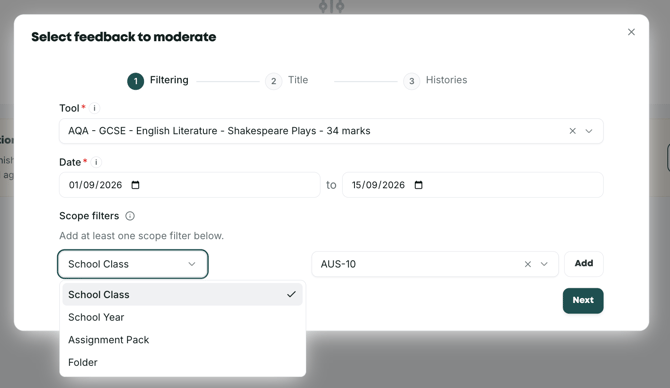
- Tool: search for and select the marking tool you used (e.g. AQA GCSE English Literature Shakespeare Plays 34-mark)
- Date range: specify when the marking originally took place
- Scope filters: this allows you to specify the scope of work you wish to look at for the moderation session, which can be filtered by class, year group, assignment pack and feedback folder. Select all filters that apply, click Add for each, then Next once you are satisfied
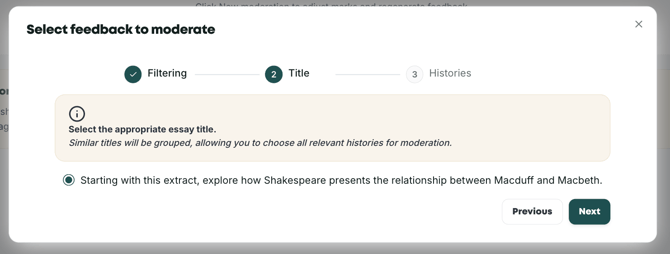
- Essay title: the software will offer any marking rounds that occurred within the parameters you have set so far. Select the essay you wish to moderate.
You’ll then see every student and essay that falls within the selected scope. At this stage, you can deselect any you don’t want including in the moderation session, for whatever reason.
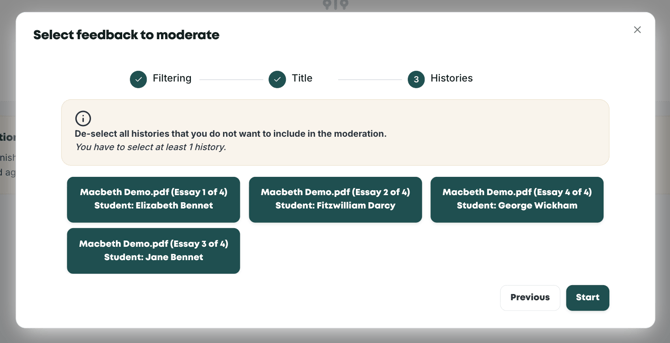
When the list of student work looks right, click Start.
Step 3: Describe the changes you want to see
This is the part that surprises people: you just write what you mean, in normal language, as if you were explaining it to a colleague in the staff room. Such as:
- You can be broad: The top band was marked too generously.
- Or very specific: Essays marked with more than 25 marks were marked too generously by two marks.
- You can single out an assessment objective: For the low-band answers, AO1 has been marked too harshly.
- Or target a characteristic of the response rather than a band: You've marked the shorter-length essays too harshly and they should be given an extra mark than you've generally awarded.
Rules can work in either direction (bringing marks down where the AI has been over-generous, or up where it's been harsh) and can be expressed as whole marks or as a percentage across a cohort.
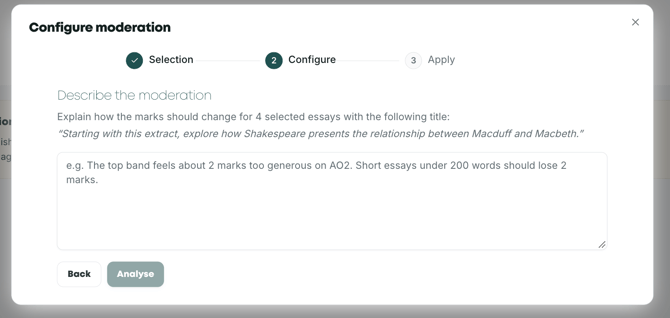
Once you’re happy with your articulation, click Analyse.
Step 4: Check the rule
Before you apply a rule, make sure to check the statement produced by our AI software.
The platform will read your statement and write back a rule it intends to apply, in its own words. An example of this is ‘I will reduce total marks for essays that fall on the top band by two’.
Read this carefully. If it is not what you meant, go back and re-describe it.
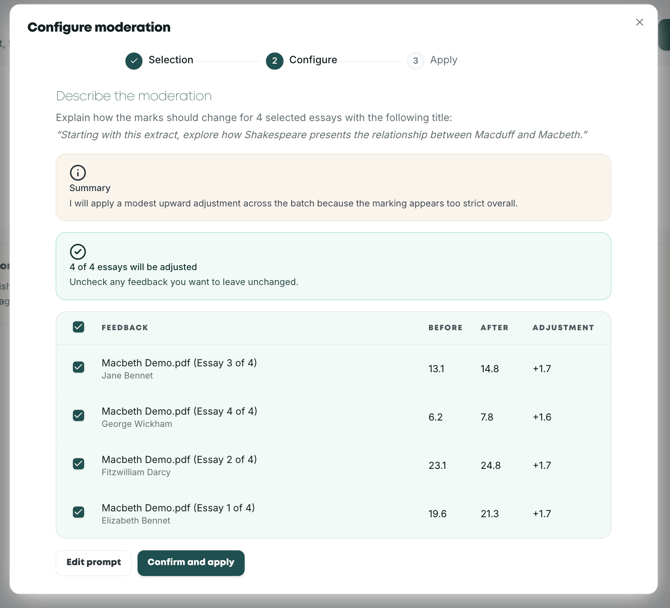
You'll also be shown how many pieces of feedback actually fall inside the rule's parameters. If it says one script when you expected fifteen, that's a signal your rule is narrower than you intended. You can still remove individual scripts from the matched set at this point.
Step 5: Confirm and apply
Once you're happy, confirm and apply. The platform remarks the selected scripts against your rule and regenerates the written feedback to match the new scores.
That last part matters. Without it you'd end up with a mark that says one thing and feedback that talks about a different essay; telling a student to work on something that isn't appropriate for the grade boundary they're now in. Moderation keeps the two in step.
What happens to the original marks?
Nothing is overwritten or lost. Once a piece of feedback has been moderated:
- it's clearly tagged as moderated, with the date it happened
- you can click through to view the moderation session and see exactly which rule was applied
- the original score is shown alongside the moderated score
So there's a full paper trail rather than a black box. If anyone asks what was changed, when, by what rule, and what the marks were before, it's all there.
Sessions stay in the Moderation area permanently. You can come back to review one at any time, or delete it.
Reusing a rule: pre-moderation
Once you've worked out a rule that reflects how your department marks, you shouldn't have to reapply it every time.
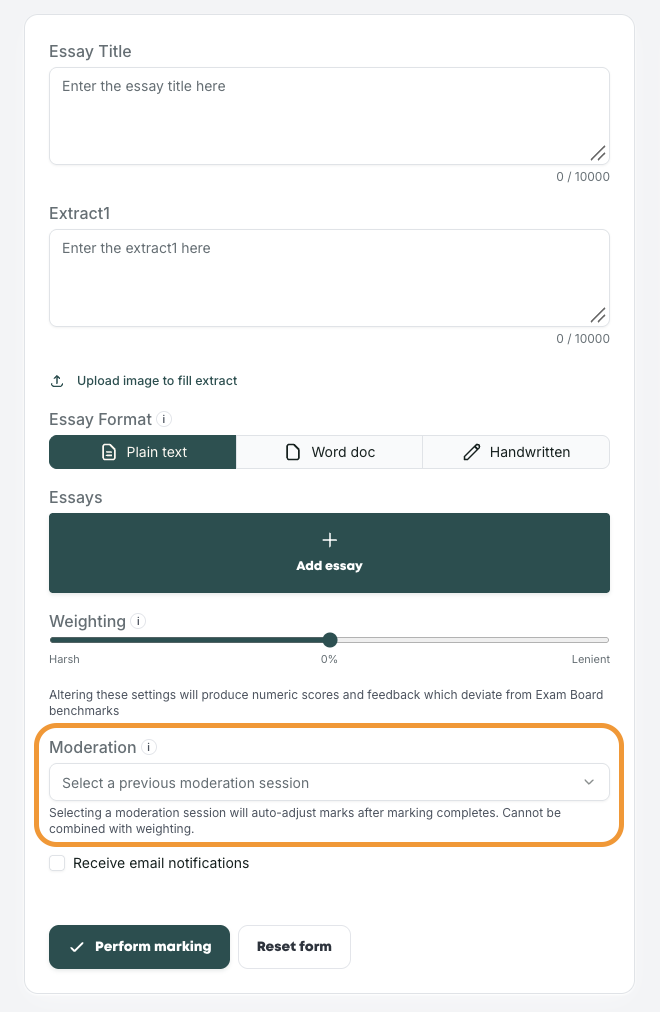
On the setup page of a standalone tool, you'll find the moderation tile at the bottom of the page on the left.
When setting up an assignment pack, you can add a moderation rule to a particular tool in Step 3 - Marking Settings.
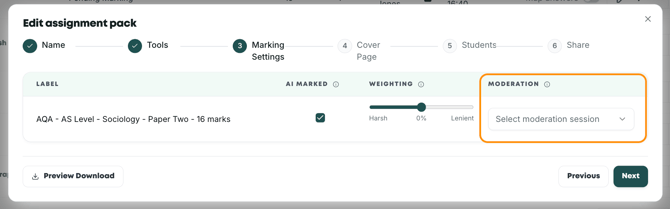
For both marking streams, select a saved rule from a previous moderation session and the platform will mark to that rule from the outset, meaning you won’t need to run a moderation session a second time for the same thing.
A practical rhythm for the year: mark your first set of scripts normally, moderate them once you can see the pattern, then apply that rule as pre-moderation to everything that follows. Your November mocks, your spring assessments and your weekly homework all come out on the same standard.
Top Tips
- Moderate once you can see a pattern, not on a single script. Moderation fixes systematic drift — a band that's consistently too generous, an AO applied too harshly. It isn't the tool for correcting one unusual response.
- Start broad, then tighten. Run a rule, look at the before-and-after scores, and refine. It's quicker than trying to get a perfectly-worded rule first time.
- Say why, not just what. Framing your rule the way you'd justify it to a colleague tends to produce a better rule than a bare number.
- Check the match count. It's the fastest way to catch a rule that hasn't been understood the way you intended.
What is Weighting, and how is it different?
Weighting is the broad-strokes alternative to moderation. Found on the tool interface page or Step 3 (‘marking settings’) when building an Assignment Pack, it lets you adjust how harshly or leniently a tool marks relative to the exam board's standard, as a straightforward percentage applied to the final score.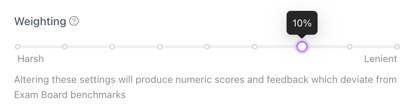
You might set a leniency of 10% at the start of the year to encourage a less confident class, or a harshness of 20% for a high-performing set who are getting complacent as exams approach. Feedback is then generated in line with the adjusted score, just as it is with moderation.
A worked example, using an original score of 20:
- Leniency of 10% → the score becomes 22
- Harshness of 20% → the score becomes 16
The difference between the two features is precision:
- Weighting shifts every script by the same proportion, regardless of band, assessment objective or the characteristics of the response
- Moderation lets you target exactly what you've noticed: a top band that's been marked too generously, an AO applied too harshly, shorter responses that deserve an extra mark
This is why you use one or the other, not both. If you're moderating, leave weighting off; otherwise you'd be applying two separate adjustments to the same marks and it becomes very hard to see what produced the final score.
Part 2: HODs and Assessment Leads
Why this exists
Every Top Marks tool is calibrated against the exam board’s own standardisation materials, providing a consistent, defensible benchmark that all schools share. However, because published materials can diverge from how examiners mark in the wild, or because your department has its own house standard, Moderation exists to bridge that gap with granular pedagogical control.
The AI maintains its consistent link to the board's benchmark; you simply decide how your department's professional judgement sits relative to it, in a way that is both documented and precise.
Department-wide standardisation
The platform is designed to turn standardisation into a shared departmental rule rather than a series of individual mental corrections. A typical rhythm for this would be:
- Mark a sample. Process a representative set of scripts to see the baseline.
- Identify the drift. Compare these results against your historic distributions or internal marking.
- Agree the pattern. Decide as a team which bands or AOs need adjusting, and by how much.
- Apply once. Express that consensus as a single rule and run it across the entire cohort.
- Save for later. Apply the rule as pre-moderation to keep your standard consistent for the rest of the year.
Since sessions can be filtered by class and date, you can ensure every group (regardless of who marked them) is held to the exact same standard. This also acts as a useful depoliticising tool, turning score adjustments into recorded departmental policy rather than unwritten individual judgements.
Managing grade boundaries
Many departments use this to align raw marks with specific grade boundaries. If a particular band sits awkwardly, you can adjust it before the final feedback is generated. Because the platform regenerates the written feedback to match the new scores, students always receive advice that is appropriate for the grade they have actually been awarded.
Governance and the audit trail
For inspections or SLT reviews, every moderated script maintains a full paper trail rather than being a black box. Each piece carries:
- a clear tag and date indicating when moderation occurred
- the specific rule applied, which can be reviewed in full at any time
- the original mark displayed alongside the new moderated score
If an inspector asks how AI results were verified, you can show exactly which scripts were touched, by what rule, and what the marks were before.
Rollout and best practice
Moderation is a powerful lever, so it is best to agree on a departmental approach before opening it up. To prevent replacing one consistency problem with another, we recommend:
- authorising specific leads to create and apply moderation rules
- agreeing on rules at the team level, rather than individually
- saving these rules as pre-moderation so they are applied from the outset
- reviewing these rules periodically against your own live marking
Let us help you analyse
If you have data comparing your internal marks with the AI's, our team can help you close the gap. Send your spreadsheet over and we can work out the best moderation rules for your specific needs and set them up on your account. Just reach out to your Top Marks contact to get started.
FAQs
Can I use Weighting and Moderation together? No, it's one or the other. Weighting is the broad leniency control; Moderation is the granular, rule-based alternative.
Will the feedback still match the new mark? Yes. Feedback is regenerated in line with the adjusted scores every time a rule is applied.
Are the original marks lost? No. Both the original and moderated scores are retained and displayed together, along with the rule and the date.
Can I moderate work marked through an assignment pack? Yes. Moderation and pre-moderation both work with assignment packs as well as standalone tools.
Can I undo a moderation? Moderation sessions can be deleted from the Moderation area, and the original marks are always preserved alongside the moderated ones.
I can't find my tool in the moderation list. Tool names in the picker don't always lead with the exam board. Try searching by question type or mark tariff; for example, the Edexcel A-Level Politics 30-marker is listed as "Papers 1 & 2. 30 Mark Question, Responding to Source". If you still can't find it, contact support and we'll check the tool is enabled for moderation on your account.
Can Top Marks tell me whether a script is one a human marker would disagree on? Not yet, but it's coming. Confidence scoring will flag scripts where our marking algorithms diverge significantly from one another (the ones two experienced markers in a staff room would be most likely to disagree about) so you know where to focus your own checking. It's a companion to moderation rather than a replacement: moderation applies a pattern you've spotted; confidence scoring surfaces the individual scripts worth a second look.
Still unsure? The support chat in the bottom-right corner of the website connects you directly to a real person on the Top Marks team – not an AI bot, ironically! Don't hesitate to reach out at any point.