.png?width=660&height=92&name=help-centre-banner-J-2x%20(2).png)
What is an Assignment Pack?
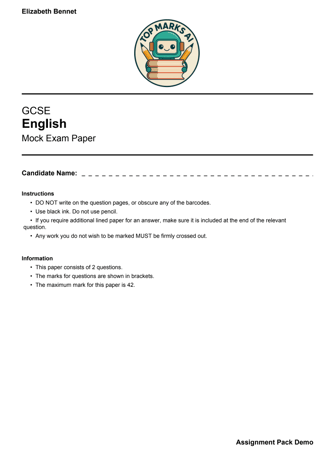
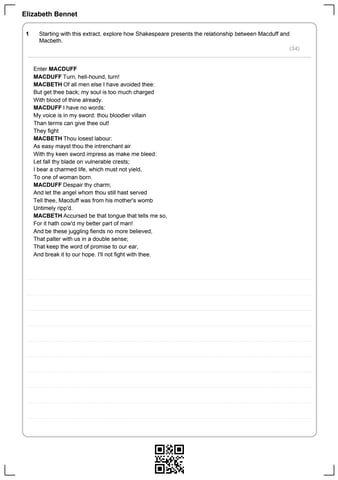
An assignment pack is a complete exam paper you build inside Top Marks. It looks like a real exam paper, with questions laid out clearly, marks listed, and lined answer sheets for students to write on. Once students have completed it, you scan their work, upload it, and the system works out which response belongs to which question and which student.
You don't have to print the paper from Top Marks to use it. If your students have already sat a paper, or you'd rather use the original exam paper or one of your own, you can still upload their scripts and have them marked. You build the pack in exactly the same way either way – the only difference comes when you upload, which is covered further down this article.
Schools have used assignment packs to mark 250+ mock exam papers in a single upload, with every single student receiving detailed feedback for every single question answered.
When to Use an Assignment Pack vs a Standalone Tool
Use a standalone tool when you're marking a single question.
Use an assignment pack when:
- You're running a full mock exam
- You want to mark multiple questions at once
- You want everything submitted and marked in a single workflow
Two ways to get your scripts back
Every pack is built the same way. Where it differs is how your students' work comes back to us:
Printed from Top Marks – students write on the paper you downloaded and printed from Top Marks. Each page carries a QR code, so the system knows straight away which student and question it belongs to.
Students' own paper (Map answers) – students sat the original exam paper, your own paper, or wrote on lined paper, so there are no QR codes. You switch on Map answers before uploading, our AI reads the scans and splits them by student and question, and you check the result before anything is marked.
You don't need to decide which one you're using until you upload.
Building Your Pack
Go to Tools → Assignment Packs → Create Assignment Pack.
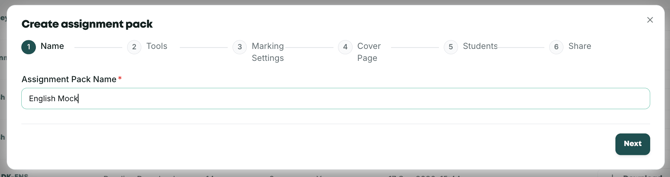
Step 1: Give your pack a name
Step 2: Add your tools
You can add questions one at a time, or import them straight from an exam paper.
Adding tools one at a time
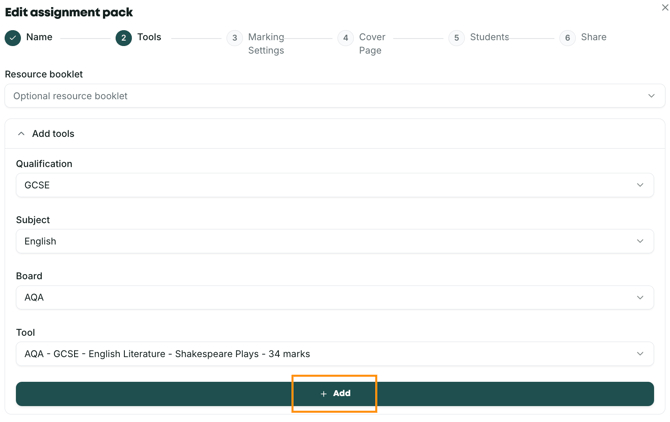
Select the qualification, subject and exam board. You'll see a list of available tools based on your selection. One at a time, select the ones you want to include and click 'Add'. For each question added, contextual box fields will appear below. Enter the context – the question title, any extract, and any other details students were responding to. You can adjust the font style too, to make it look exactly as you want it.
Importing from an exam paper

If you already have the paper to hand, choose Import from exam paper and let the system match the questions for you. You'll be asked for the qualification, subject and exam board the paper belongs to, so the questions can be matched against the right marking tools. Then upload the question paper as a PDF and click Extract questions.
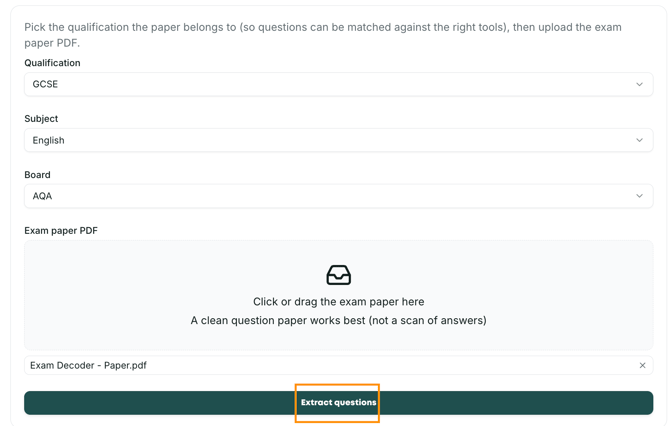
Upload a clean question paper, not a scan of student answers. A blank paper with no student responses on it gives the system the best chance of matching every question correctly. Extraction usually takes around half a minute.
Once the questions have been extracted, each one appears as a Top Marks marking tool that you can confirm or edit. You can amend the essay title, the extract and the extract source (typed text or an uploaded image), and choose whether the extract appears on the student's question page. It's worth reading through them before moving on – if a question hasn't been matched, or has been matched to the wrong tool, this is the point to fix it.
Note: If you see the message "Locked to the board of the imported exam paper. Only its tools can be added", nothing has gone wrong. This is expected behaviour.
When you create an assignment pack using Import from exam paper, the pack is set to the qualification, subject and board of that paper. Any further tools you add must match it. For example, if you imported an AQA GCSE English paper, you wouldn't be able to add an Edexcel A Level History question to the same pack.
You can still build the pack however you like within those settings, adding or removing any questions that match the same qualification, subject and board.
It's also worth scrolling down in the pop-up. The essay title and extract fields will usually have been filled in automatically from the paper you imported, so check those before moving on.
If you want a pack that mixes boards or subjects, start a new pack using Add tools instead. This lets you pick each tool individually without the lock.
Answer sheets
For each question, choose how many lined answer sheets to include:
- Printing from Top Marks? Set the number of sheets you'd like students to have for each question.
- Students writing on their own paper, or have already sat the paper? Set this to 0. There's no lined paper to generate.
You can also mix and match Top Marks lined paper and your own if students write lengthy essays – just scan the pages in the correct order.
Top tip: You're not limited to replicating a real exam paper. You can build entirely bespoke papers – different question combinations, repeated questions for practice, or structures that don't match any published paper.
Step 3: Adjust your marking settings
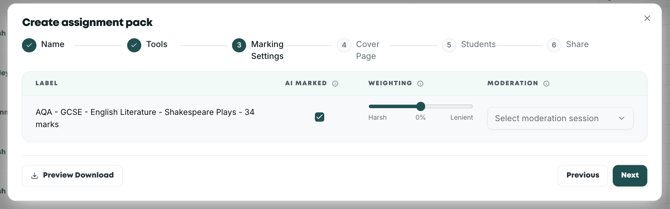
The Marking Settings step lists every tool in the pack. For each one you can:
- Choose whether it's AI marked – if your pack has six questions but you only want AI feedback on two, simply deselect the others
- Set the weighting on a harsh-to-lenient scale
- Apply a moderation rule using the Select moderation session dropdown
Selecting a saved moderation rule means the platform marks to that rule from the outset, so you won't need to run the same moderation session twice.
Step 4: Add a cover page (optional)
You can add a cover page to create a complete replica of an exam paper, so it feels as real as possible for your students. You can add your school's logo, give your paper a name, and edit the exam instructions (default instructions apply automatically). If students are writing on their own paper, or you're submitting scripts that were not printed via Top Marks, you'll likely want to skip this step.
Step 5: Add your students
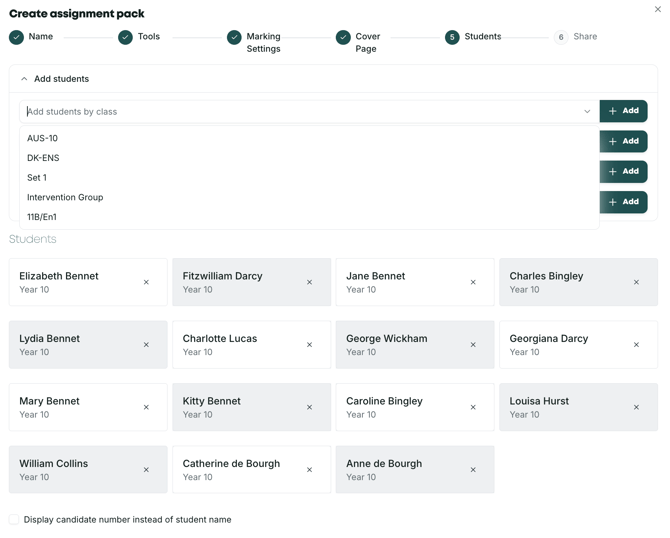
Add every student who will sit (or has sat) the paper, by class, year group or name. This is how feedback gets tagged to the right individual. If you're uploading scripts without QR codes, the system matches the names it reads on the scans against this list, so anyone missing here can't be matched.
Step 6: Share the pack (optional)
You can share the pack with other teachers or staff. This is especially helpful if one person is building packs for the teachers who'll be collecting and uploading student work. The pack will be visible to them, and they'll be able to upload work to it for marking.
Note: This is different from the Split function, which is explained later in this article.
Once you finish, the pack appears in your Assignment Packs list.
Downloading Your Pack
Whichever way your students are sitting the paper, the next step is the same: click Download against the pack in your Assignment Packs list.
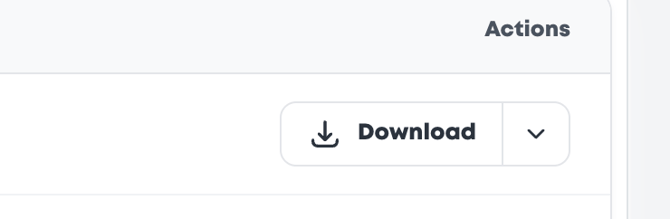
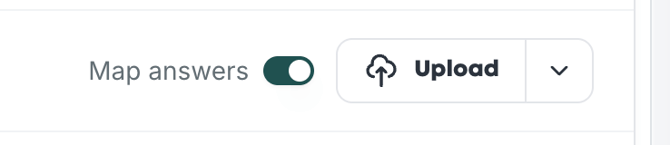
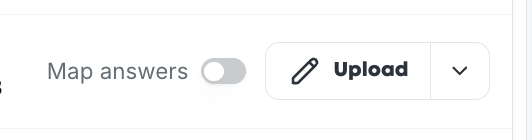
Once the pack has been downloaded, the Download button changes to Upload, and a Map answers toggle appears next to it. This is where the two options split:
- Students are writing on the printed Top Marks paper? Leave Map answers off, print the pack, and hand it out. Follow Uploading Printed Top Marks Papers below.
- Students are writing on their own paper, or have already sat it? You don't need to print anything. Switch Map answers on and follow Uploading Scripts Without QR Codes below.
Uploading Printed Top Marks Papers
Once students have completed the paper, scan all of their responses (with the QR codes on each page) into a single PDF. Make sure Map answers is switched off, then click Upload against the pack and add your PDF. The QR codes tell the system which student and question each page belongs to, so it handles the rest and sends everything straight for marking. (If any of your scripts weren't printed from Top Marks, they won't have QR codes and won't be picked up this way – upload those with Map answers switched on instead.)
Feedback appears in the My Feedback area as it comes through.
Uploading Scripts Without QR Codes (Map answers)
Use Map answers when your students have written on anything other than the printed Top Marks paper – for example, if you're marking a paper retrospectively after they've already sat it, or you've used the original exam paper or your own. Because there are no QR codes to read, our AI reads the scans and works out which piece of writing belongs to which student and question. There's then an extra review stage where you check it's got everything right before anything is marked.
Step 1: Switch on Map answers
In your Assignment Packs list, switch the Map answers toggle on against the pack. (If you can't see the toggle, download the pack first – it only appears once the pack has been downloaded.) This tells the system there won't be any QR codes on the scripts you're about to upload.
Important: if Map answers is switched off, scripts without QR codes won't be identified and can't be marked. With the toggle off, the system relies entirely on the QR codes to work out which student wrote which response – it doesn't read student names or question numbers. Only Map answers does that.
Step 2: Prepare and scan the student responses
The AI works best when the scans give it clear signals to read. Before you scan:
- Make sure each student's name is clearly written on at least the first page of their responses
- Label the questions on the page (Q1, Q2, Q3 and so on)
- Scan the full set of responses into a single PDF, keeping each student's pages together
- Scan at 200 DPI or higher – lower-resolution scans can't be mapped
Step 3: Upload and start mapping
Click Upload against the pack to open the Map scanned answers window. Add your scanned PDF, choose a folder if you want the pack filed somewhere in particular, and tick Receive email notifications if you'd like to be told when mapping has finished. Then select Start mapping.
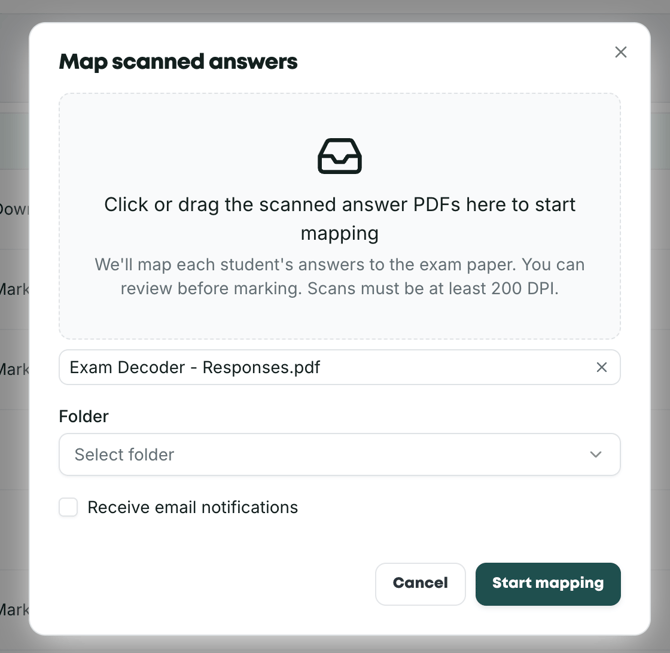
The pack status changes to Mapping while the system works through the responses. Once it finishes, the status changes to Mapped and a Review button appears.

Step 4: Review the mapping
Click Review to open the Match scanned answers screen. This is your chance to check the system has attributed every piece of writing to the right student and the right question before anything is marked.
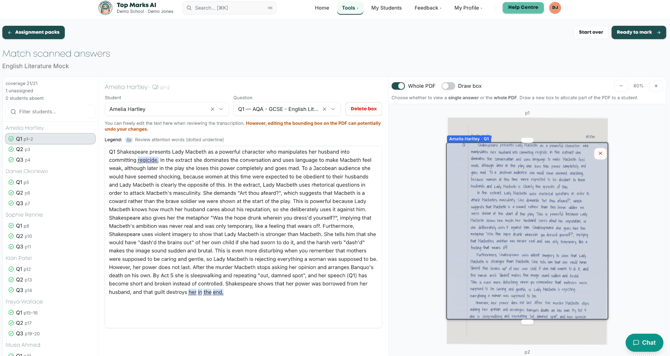
The screen has three panels:
- On the left, a coverage summary showing how many answers have been matched, how many are unassigned, and how many students are marked absent, followed by a searchable list of every student and their questions with page references. Use the filter box to jump to a particular student.
- In the middle, the transcription of the selected answer, with dropdowns showing which student and which question it has been attributed to. You can edit the transcribed text directly here.
- On the right, the scanned PDF with translucent coloured boxes drawn over it, each labelled with the student and question it belongs to.
A few things you can do from here:
- Reattribute an answer – use the Student and Question dropdowns to move a box to the right student or question
- Change what's captured – resize a box on the PDF to expand or reduce the text selected for that answer
- Delete a box – use the red cross on the box, or the Delete box button
- Draw a new box – switch the toggle above the PDF from Whole PDF to Draw box, then draw over the part of the page you want to allocate. A new box starts as unassigned, so set the student and question from the dropdowns
- Start over – if the mapping has gone badly wrong, Start over lets you begin again rather than correcting box by box
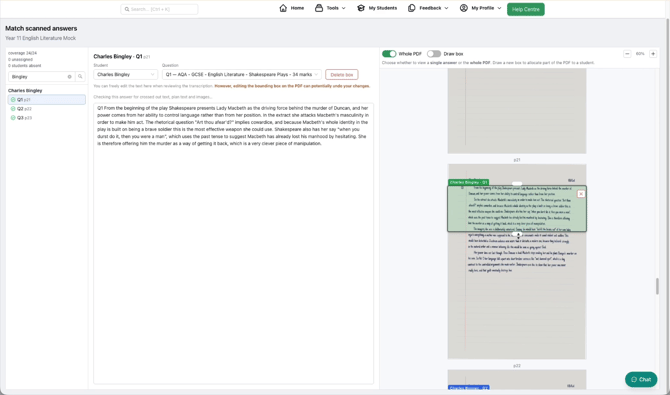
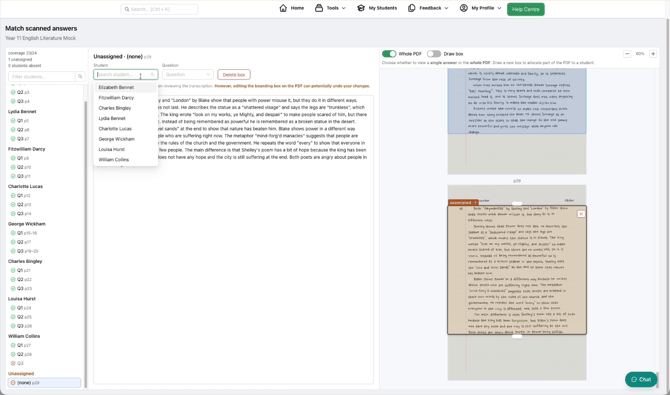
Note: you can freely edit the transcribed text, but editing the box on the PDF afterwards can undo those edits. Get the boxes right first, then tidy up the text.
Step 5: Send for marking
Aim to get the unassigned count to zero and the coverage count complete before you go any further. When you're happy, click Ready to mark. Feedback appears in the My Feedback area as it comes through, exactly as it does for any other assignment pack.
The Split Function
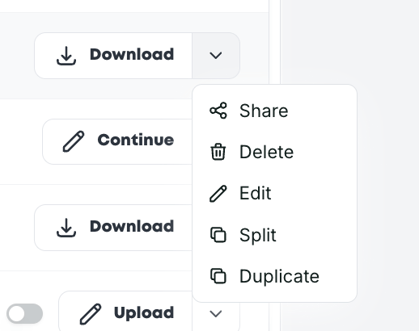
Split lets you divide an assignment pack up by teacher and class. It's similar to the Share step, but rather than giving everyone access to the whole pack, each group is responsible for uploading only their portion of the student work.
Go to the Assignment Packs area, click the three horizontal dots on the far right next to the relevant pack, and select Split. Type in and select the first teacher and their class, then click Add Group each time you want to add another teacher and class.
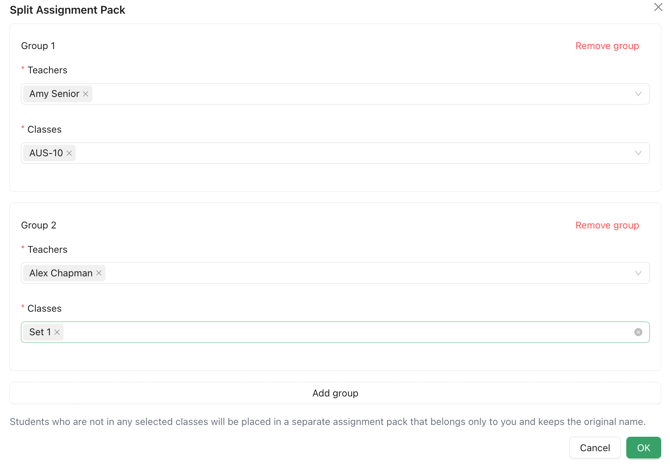
Each teacher is then responsible for uploading the work for their own class. This is especially useful for larger cohorts, where you may not want one teacher uploading 250+ papers.
The Reset Function
If you need to upload more student responses to a pack that has already been marked – for example, if some students sat the paper late or you're scanning a class in stages – you can do this with the Reset option.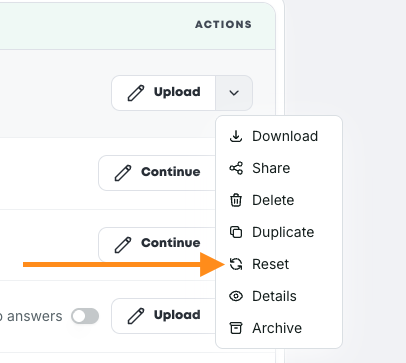
First, make sure everything you've already submitted has fully finished marking. Then click the arrow drop-down next to the pack and select Reset. This clears the pack of its uploaded files so you can add the next batch, and any feedback already produced stays in My Feedback.
Note: please don't reset a pack while marking is still in progress, including after transcription has finished but before marking has. Doing so will clear the transcriptions currently loaded into the pack, and those scripts may need to be uploaded again.
Top tip: if you're unsure whether a batch has finished, you can check its progress under Tools → My Ongoing Marking before resetting.
Multiple Choice Questions
Multiple choice questions are available within assignment packs and standalone tools. When adding a question, look for the toggle to switch to multiple choice mode.
Still unsure? The support chat in the bottom-right corner of the website connects you directly to a real person on the Top Marks team – not an AI bot, ironically! Don't hesitate to reach out at any point.